![Logo - BG Dark.png]](https://knowledge-base.optidigital.com/hs-fs/hubfs/Logo%20-%20BG%20Dark.png?height=40&name=Logo%20-%20BG%20Dark.png)
The Yield Hub SDK supports the main programmatic marketplaces including Google Publisher Tags (Google Ad Manager + Google Ad Exchange + Open Bidding), Amazon and Prebid adapters (through the Prebid Price Floors module).
Essential Installation Prerequisites for Yield Hub.
- Google Ad Manager (GAM)
- Minimum of 3 custom dimensions available (3 lines in GAM)
- At least 50 available UPRs in GAM
- Prebid
1. Grant Restricted Access to GAM
Yield Hub necessitates a precise GAM configuration to perform accurate data extraction, establish pricing rules, and utilize the key values essential for fine-grained revenue optimization.
To operate without requiring full administrator access, Opt Digital has defined the minimum profile/role necessary to install and operate Yield Hub. The steps to define this role are outlined in the following instructions.
3 essential and obligatory steps are required when using Google Ad Manager Small Business. An additional step is necessary for Google Ad Manager 360 users:
-
Create a new role to grant access to your GAM for the Yield Hub team.
-
Generate a new user profile with the privileges assigned to the newly created role, facilitating the installation and activation of Yield Hub.
-
Establish API access with the permissions of the newly created role to enable data extraction and maintenance.
For Google Ad Manager 360 users, an extra step is needed: creating a dedicated team to ensure accurate data extraction.
ℹ️ What exactly are Google Ad Manager edit permissions used for in Yield Hub? Learn more
----------- STEP 1 - CREATE A NEW ROLE -----------
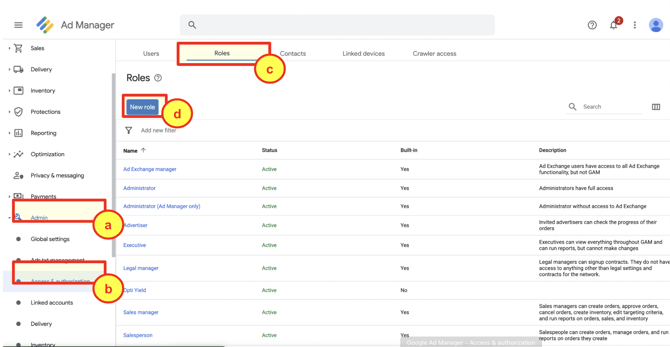
- Connect to your Google Ad Manager account as admin.
Note: Working for Google Ad Manager Small Business and Google Ad Manager 360.
-
- Go to Admin -a-
- Go to Access and Authorization -b-
- Go to User Role -c-
- Click "New Role" -d-
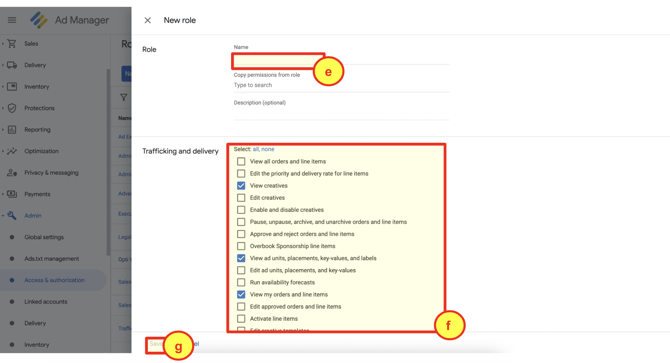
-
- Enter the following name: OptiYield -e-
- Configure the role - mandatory -f-
-
- Check the following boxes - Learn More -
- Trafficking and Delivery >> View creatives
- Trafficking and Delivery >> View ad units, placements, key-values, and labels
-
Trafficking and Delivery >> Edit ad units, placements, and key-values
- Trafficking and Delivery >> View my orders and line items
- Trafficking and Delivery >> Access Ad Exchange interface
- Trafficking and Delivery >> View mobile apps
- Trafficking and Delivery >> Edit key-values values
- Manage people >> View companies and contacts
- Manage people >> View pricing rules
- Manage people >> Modify pricing rules
- Reporting >> Create and view reports
- Check the following boxes - Learn More -
-
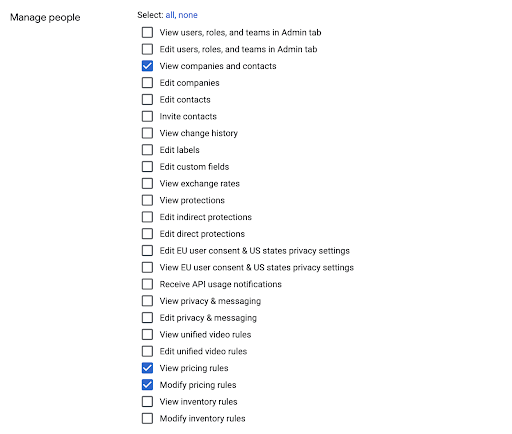
4. a. Check that 11 boxes are well selected
-
-
- Save - g -
-
----------- STEP 2 - CREATE A NEW USER WITH THE NEW ROLE RIGHTS -----------
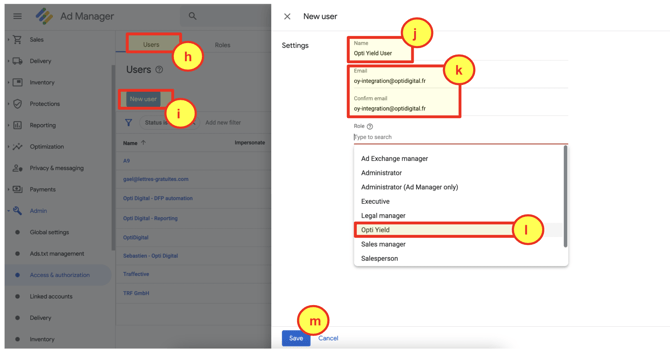
- Go to Users -h-
- Click "New User" -i-
- Enter an explicit name for the user. Example: Yield Hub User -j-
- Enter the following email -k-
oy-integration@optidigital.fr
- Confirm the email
oy-integration@optidigital.fr
- Select Role "Yield Hub" that has been previously created -l-
- Save -m-
----------- STEP 3 - CREATE A NEW API ACCESS WITH THE NEW ROLE RIGHTS -----------
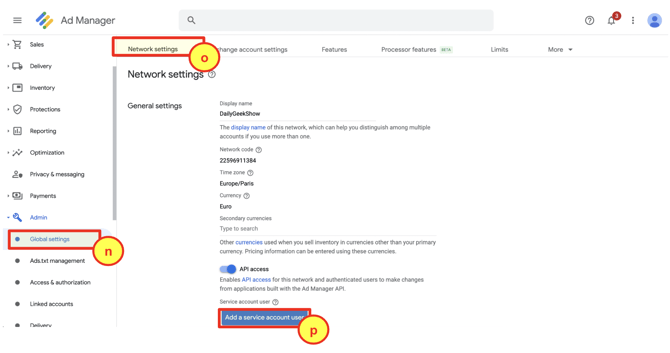
- Go to Global Settings -n-
- Go to Network Settings -o-
- Click "New User" -p-
_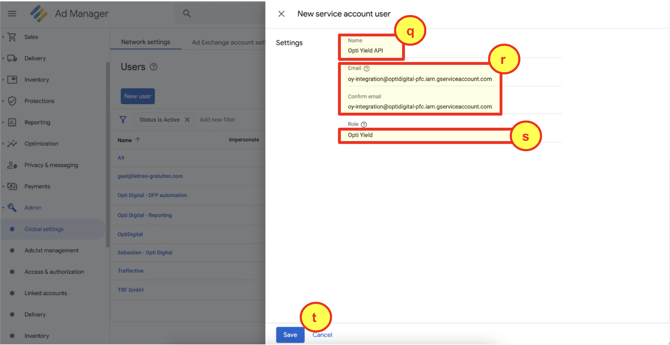
_ - Enter an explicit name for the user. Example: Yield Hub API -q-
- Enter the following email -r-
oy-integration@optidigital-pfc.iam.gserviceaccount.com
- Confirm the email
oy-integration@optidigital-pfc.iam.gserviceaccount.com
- Select Role "Yield Hub" that has been previously created -s-
- Save -t-
----------- ADDITIONAL STEP FOR CUSTOMERS USING Google Ad Manager 360 -----------
----------- STEP 4 - CREATE A NEW TEAM -----------
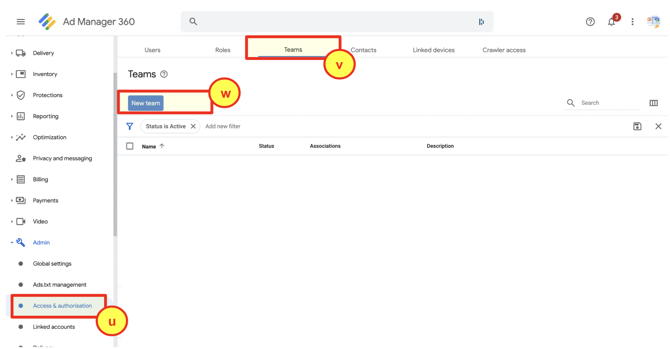
- Go to Access & Authorization -u-
- Go to Teams -v-
- Go to New team - w-
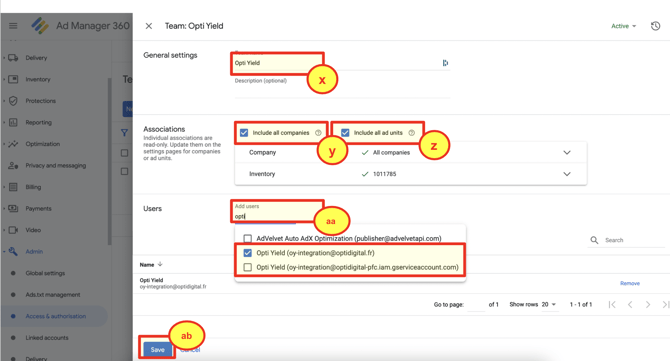
- Enter a name "Yield Hub" -x-
- Select "Include all companies" -y-
- Select "Include all ad units" -z-
- Add 2 users -aa-
-
- Add user "Yield Hub (oy-integration@optidigital.fr)"
- Add user "Yield Hub (oy-integration@optidigital-pfc.iam.gserviceaccount.com)"
-
- Save -ab-
2. Insert Yield Hub SDK in your HEAD section before your CMP
The Yield Hub SDK is distributed via our Cloudflare CDN service, ensuring efficient delivery to users in different regions (European traffic served from Europe endpoints, US traffic served from US endpoints). Importantly, it neither processes personal data nor hinders page speed, thanks to its lightweight and asynchronous loading.
We strongly recommend inserting our javascript SDK at the start of your HEAD section before your CMP provider scripts so Yield Hub SDK will be ready to deliver dynamic price floors before your header bidding auctions start.
<html>
  <head>
    <script async src="//optiyield.opti-digital.com/pfc/?pubid=111111"></script>
The Yield Hub publisher ID is your GAM network ID - replace 111111 by your GAM network ID
_________
Your part is complete. The Yield Hub team will now proceed to configure your GAM and initiate Yield Hub for a comprehensive optimization of your web inventory.